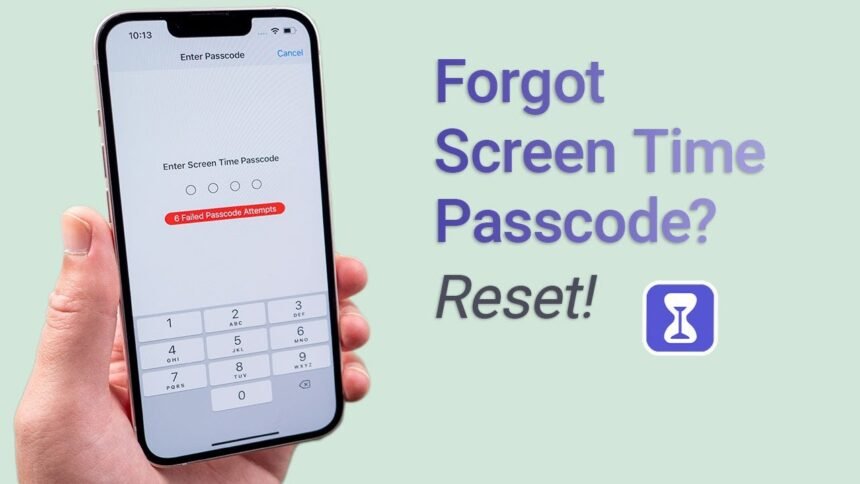
Introduction:
Have you ever found yourself locked out of your iPhone’s Screen Time settings, wondering what to do when you’ve forgotten your Screen Time passcode? You’re not alone. It’s a common issue, and many iPhone users struggle with this problem, especially when they want to modify their device usage limits or access content restrictions. But don’t worry! In this article, we will explore several methods to recover or reset your forgotten Screen Time passcode, so you can regain full access to your device.
Whether you’ve forgotten your passcode because you set it up months ago or because you’re trying to change the settings for your child’s phone, we’ve got you covered with simple, step-by-step solutions.
What is Screen Time on iPhone?
Before diving into the recovery process, let’s first understand what Screen Time is and why it’s essential for managing your device.
Screen Time is a feature on iPhones that allows you to monitor and limit the amount of time you or your children spend on apps, websites, or specific activities. It is especially useful for parents who want to ensure their children don’t spend too much time on screens. Users can set time limits for individual apps, schedule Downtime, and restrict certain content. A passcode is required to change any settings related to Screen Time, ensuring privacy and control.
Why Would You Forget Your Screen Time Passcode?
There are several reasons why you might forget your Screen Time passcode:
-
Time lapse: If you haven’t used the feature in a while, it’s easy to forget the passcode.
-
Shared device: If you’re sharing your phone with someone else, like a partner or child, it’s possible that they might have set the passcode without your knowledge.
-
Multiple passcodes: Many people use different passcodes for various purposes (e.g., phone lock, iCloud, and Screen Time), making it difficult to remember all of them.
Whatever the reason, it can be frustrating, but there are ways to solve the issue.
Methods to Recover or Reset Your Forgotten Screen Time Passcode
Here are some of the most effective ways to reset or recover your forgotten Screen Time passcode:
1. Use Apple ID to Reset Screen Time Passcode (iOS 13.4 and later)
Starting from iOS 13.4, Apple has made it easier to reset the Screen Time passcode using your Apple ID. This is the quickest and most straightforward method if you have linked your Apple ID to the Screen Time settings.
Steps to Reset via Apple ID:
-
Open the Settings app on your iPhone.
-
Scroll down and tap on Screen Time.
-
Tap on Change Screen Time Passcode.
-
Select Forgot Passcode?.
-
Enter your Apple ID credentials (the same Apple ID you used to set up Screen Time).
-
Follow the prompts to reset the Screen Time passcode.
This process will allow you to set a new passcode and regain access to all Screen Time features.
2. Use iTunes or Finder to Reset Screen Time Passcode
If your device is running an older version of iOS (before iOS 13.4) or you didn’t link your Apple ID to Screen Time, you can use iTunes (or Finder on macOS Catalina and later) to reset the device and remove the passcode. Please note that this method will erase all data on the device, so it’s important to back up your iPhone beforehand.
Steps to Reset Screen Time Passcode via iTunes/Finder:
-
Connect your iPhone to your computer using a USB cable.
-
Open iTunes (or Finder on macOS Catalina and later).
-
Select your iPhone from the list of devices.
-
Click on Restore iPhone.
-
Follow the on-screen instructions to restore your device to factory settings.
-
Once the device is reset, you can set it up as a new iPhone and skip the Screen Time passcode setup.
3. Use Third-Party Software Tools
If you’re not comfortable with restoring your device, third-party software tools can help you reset the Screen Time passcode without erasing your data. These tools are designed to remove or bypass the Screen Time passcode, making it easier to regain access.
Some popular third-party tools for this purpose include:
-
Tenorshare 4uKey
-
iMyFone LockWiper
-
Dr.Fone – Screen Unlock
Steps to Use Third-Party Software:
-
Download and install the third-party tool on your computer.
-
Connect your iPhone to the computer.
-
Launch the software and select the option to remove or reset the Screen Time passcode.
-
Follow the on-screen instructions to complete the process.
Note: These tools are paid, and it’s essential to choose a reputable one to avoid security risks.
Precautions to Avoid Forgetting Your Screen Time Passcode in the Future
Once you’ve regained access to your Screen Time settings, consider these tips to avoid forgetting your passcode again:
-
Link your Apple ID: Always associate your Screen Time passcode with your Apple ID. This makes it easy to reset the passcode in case you forget it.
-
Write it down securely: If you don’t want to rely on your Apple ID, consider writing your passcode down and storing it in a secure location (e.g., password manager).
-
Use a memorable passcode: Choose a passcode that is easy to remember but hard to guess for others.
Conclusion
Forgetting your Screen Time passcode can be frustrating, but with the methods outlined in this article, you should be able to regain access and reset it without too much hassle. Whether you’re using Apple ID, iTunes/Finder, or a third-party tool, it’s important to act quickly and take the necessary steps to avoid losing your device settings. Remember, linking your Apple ID to Screen Time is one of the best ways to ensure you never forget your passcode again!
Frequently Asked Questions (FAQs)
1. Can I reset my Screen Time passcode without losing data?
Yes, if you have an Apple ID linked to your Screen Time settings, you can reset the passcode without losing data. Otherwise, using iTunes or Finder will erase your data.
2. What happens if I forget my Screen Time passcode on an older iPhone model?
On older iPhone models (pre-iOS 13.4), you may need to restore your device via iTunes or Finder to remove the Screen Time passcode.
3. How do I prevent someone from changing my Screen Time passcode?
You can set a passcode that only you know, and avoid sharing it with others. Additionally, you can link your Apple ID to Screen Time for easier passcode recovery.
4. Can third-party tools help if my iPhone is disabled due to Screen Time restrictions?
Yes, third-party tools can help bypass the Screen Time passcode without erasing data, even if your iPhone is disabled.
5. Why is it important to link my Apple ID to Screen Time?
Linking your Apple ID makes it much easier to reset the Screen Time passcode if you forget it in the future, without needing to erase your data.