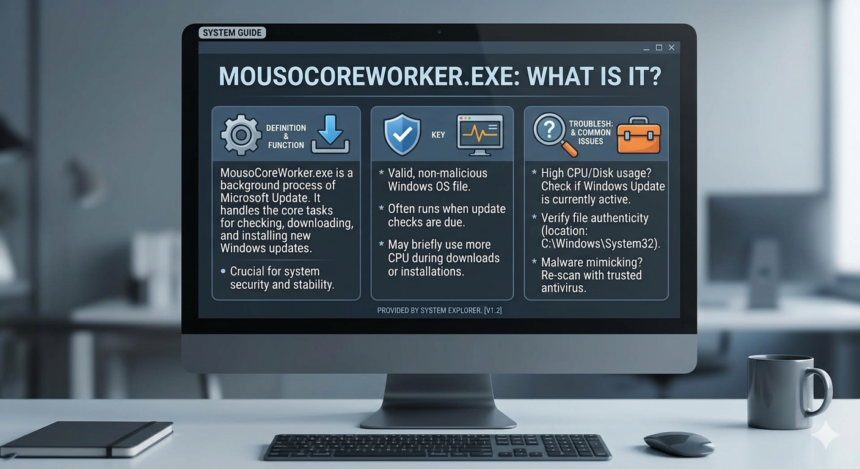
If you have ever opened your Task Manager and noticed a process with a tongue-twisting name hogging your resources, you are not alone. Many users find themselves staring at mousocoreworker.exe while their laptop fan whirrs like a jet engine. Seeing an unfamiliar executable consume 50% of your CPU or keep your computer from sleeping at night is enough to make anyone suspicious.
In 2026, Windows systems have become more automated, but that doesn’t mean they are always silent. This guide dives deep into the mystery of the MoUSO Core Worker. We move beyond basic technical jargon to explain why it is there, whether it is dangerous, and exactly how you can reclaim your system’s speed.
Mousocoreworker.exe Service Role Defined
The first thing you need to know is that this is a legitimate Microsoft process. The “USO” in the name stands for Update Session Orchestrator. Essentially, this file acts as the conductor for your Windows Update symphony. It determines which updates take priority, when they should be downloaded, and how they should be installed to keep your system secure.
It replaced the older “wuauclt.exe” in recent versions of Windows 10 and 11. Its primary job is to work in the background so you don’t have to manually manage security patches. While it is meant to be a silent helper, its “orchestration” duties can sometimes become a bit too loud, leading to performance issues.
Master System Update Orchestration
When your PC checks for updates, mousocoreworker.exe springs into action. It coordinates with Microsoft’s servers to see if your specific hardware needs new drivers or if the OS needs a security “band-aid.” This process is vital because it ensures that feature updates don’t clash with your existing software, preventing the blue screens of death that used to be far more common.
However, the orchestration can get stuck in a loop. If a specific update fails to download or if the “handshake” with the server is interrupted, the process might keep retrying indefinitely. This is usually when you see your CPU or Disk usage spike. It is not trying to be malicious; it is simply a very persistent worker trying to finish a job it can’t quite complete.
Resolve High CPU Usage
High CPU usage is the most common complaint tied to this file. If you notice your computer slowing down, the first step is to check the Windows Update menu itself. Often, the process is working hard because a large “cumulative update” is being processed in the background. Giving it thirty minutes to finish its task usually solves the problem.
Efficient Triage Troubleshooting Steps
If the usage remains high for hours, it is time to intervene. A simple restart can often clear the temporary cache that is causing the bottleneck. If that fails, running the built-in Windows Update Troubleshooter is a surprisingly effective move. It resets the internal “checklists” that mousocoreworker.exe follows, often snapping it back into its normal, low-resource state.
Manual Update Command Triggers
Sometimes, the orchestrator just needs a manual nudge. By forcing a manual “Check for Updates” in your settings, you can often push a stuck process through its final phase. This allows the worker to complete its task and release its hold on your processor, cooling down your system almost immediately.
Refreshing Corrupted Distribution Folders
If all else fails, your update cache might be corrupted. Renaming the “SoftwareDistribution” folder forces Windows to create a fresh one, effectively giving mousocoreworker.exe a clean slate. This is a common fix for persistent loops where the system keeps trying to install a broken file.
Stop Unexpected Sleep Wakeups
Does your laptop battery seem to drain overnight? Mousocoreworker.exe is a frequent culprit for “insomnia” in PCs. Because it is tasked with keeping your system secure, it has the authority to wake your computer from sleep mode to install urgent patches. While this is great for security, it is terrible for your electricity bill or your laptop’s heat levels.
You can check if this is happening by using the command prompt. Running powercfg /requests will show you exactly which processes are currently preventing your computer from entering a low-power state. If you see the MoUSO worker listed, it means it is waiting for a “go-ahead” to finish an update. Usually, finishing the update and rebooting is the only way to let your PC finally rest.
Legitimate File Safety Verification
In an era of sophisticated malware, it is natural to worry that a weirdly named file might be a virus in disguise. To verify that your copy of mousocoreworker.exe is safe, you should check its home. The real file always lives in the C:\Windows\System32 folder. If you find a version of this file in your “Downloads” or “Temp” folders, that is a massive red flag.
Another way to verify it is by checking the digital signature. Right-click the file in Task Manager, select “Properties,” and look at the “Digital Signatures” tab. It should be signed by Microsoft Windows. If the signer is missing or looks like a string of random characters, run a full system scan with your antivirus immediately, as malware often “piggybacks” on the names of trusted system files.
Refine Windows Delivery Optimization
Delivery Optimization is a feature that allows your PC to share update files with other computers on your local network. While this saves bandwidth for Microsoft, it requires mousocoreworker.exe to be more active. If you have a limited data plan or a low-powered PC, this “peer-to-peer” sharing can put an unnecessary strain on your resources.
By going into your Windows Update settings and navigating to “Advanced Options,” you can find the Delivery Optimization toggle. Turning off “Allow downloads from other PCs” can significantly reduce the background activity of the MoUSO process. This is a great tweak for users who want a quieter, more predictable computer experience without sacrificing security.
Manage Update Service Triggers
If you are an advanced user, you might want to take direct control over when these background tasks run. The “Update Orchestrator Service” can be managed through the services.msc window. Here, you can restart the service to clear out glitches or, in extreme cases, change its startup type. However, we do not recommend disabling it entirely.
Disabling the orchestrator is like firing the foreman of a construction site. The work might stop, but the site will eventually become a mess of unpatched security holes. Instead of disabling it, try “Pausing” updates for a week. This tells mousocoreworker.exe to stand down temporarily, giving you some breathing room to finish important work.
Advanced Registry Fix Methods
Sometimes the “glitch” is buried deep in the Windows Registry. If the process is stuck in a loop despite all other fixes, there is a specific key that manages the “Power Requests” of the orchestrator. Modifying the registry is a “surgical” procedure, so you should always create a restore point before you begin tinkering with the inner workings of your OS.
Navigate to the HKEY_LOCAL_MACHINE\SOFTWARE\Microsoft\Windows\CurrentControlSet\Control\Power path. From here, users often find that clearing the power override settings can force the MoUSO worker to respect your sleep timers again. This is usually the “final boss” of fixes for those whose computers refuse to stay off at night.
Enhance System Maintenance Routine
A “clogged” system often makes background processes work harder than they need to. Regularly clearing out your temporary files and cleaning your SoftwareDistribution folder can make life much easier for mousocoreworker.exe. This folder is where Windows stores the “raw” update files before they are installed.
Think of it like cleaning out a filing cabinet. If the worker has to dig through piles of old paper to find the new documents, they will take longer and use more energy. By purging the update cache once or twice a year, you ensure that the MoUSO process has a clear path to follow, leading to faster updates and much lower CPU usage for your machine.
Catchy Headline: Reclaim Your PC Speed Today
Understanding mousocoreworker.exe what is it is the first step toward a healthier, faster computer. While it might seem like a nuisance when it hogs your CPU or wakes your laptop at 3 AM, it is an essential part of the modern Windows ecosystem. By using the fixes outlined in this guide, you can ensure this “orchestrator” does its job without disrupting your life. Keep your system updated, your cache clean, and your registry in check to enjoy the best performance Windows has to offer in 2026.
FAQs
What is mousocoreworker.exe?
It is a legitimate Windows process called the Update Session Orchestrator that manages the downloading and installation of system updates.
Why is it using so much CPU?
It usually spikes because it is actively scanning for updates, installing a large patch, or has become stuck due to a corrupted update cache.
Can I delete this file?
No, you should not delete it. It is a critical system file. If you delete it, Windows will be unable to update, leaving you vulnerable to security threats.
How do I stop it from waking my PC?
Run the powercfg -lastwake command to confirm it is the culprit, then ensure all pending Windows updates are fully installed and the system is rebooted.
Is it a virus or malware?
Not normally. However, you should verify it is located in the C:\Windows\System32 folder and has a valid Microsoft digital signature to be 100% sure.